Use when the user needs guidance on pcf-power-pages. GitHub Copilot instruction from the awesome-copilot collection.
Scanned 9/8/2026
Install to Claude Code
npx -y skills add anubhavg-icpl/vibe --skill ghcopilot-instr-pcf-power-pages --agent claude-codeInstalls into .claude/skills of the current project.
Are you the author of Ghcopilot Instr Pcf Power Pages?
Add the live security badge to your README — it updates automatically with every re-scan.
[](https://www.skillsdirectory.com/skills/anubhavg-icpl-ghcopilot-instr-pcf-power-pages)More formats (shields.io, HTML) on the badges page.
---
name: ghcopilot-instr-pcf-power-pages
description: "Use when the user needs guidance on pcf-power-pages. GitHub Copilot instruction from the awesome-copilot collection."
license: CC-BY-NC-SA-4.0
metadata:
version: "1.0.0"
tags: [copilot-instruction, community, pcf-power-pages]
applyTo: "**/*.{ts,tsx,js,json,xml,pcfproj,csproj}"
source: "awesome-copilot"
---
# Use Code Components in Power Pages
Power Pages now support controls built for model-driven apps created using Power Apps component framework. To use code components in Power Pages site webpages:
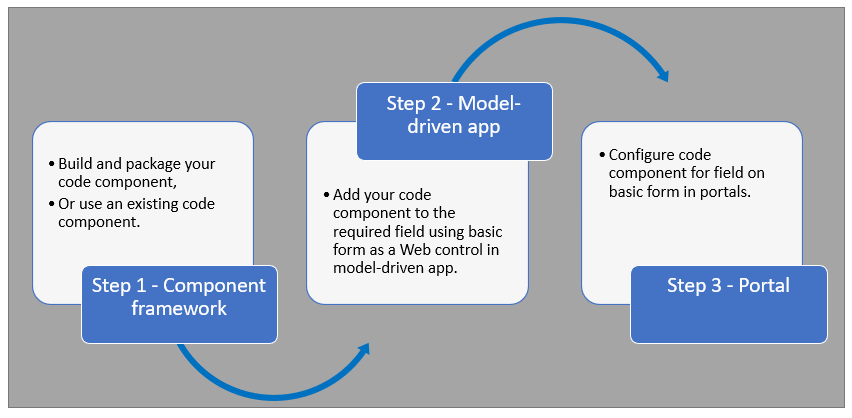
After completing these steps, users can interact with the code component using the webpage that has the respective [form](https://learn.microsoft.com/en-us/power-pages/getting-started/add-form) component.
## Prerequisites
- You need system administrator privileges to enable the code component feature in the environment
- Your Power Pages site version needs to be [9.3.3.x](https://learn.microsoft.com/en-us/power-apps/maker/portals/versions/version-9.3.3.x) or higher
- Your starter site package needs to be [9.2.2103.x](https://learn.microsoft.com/en-us/power-apps/maker/portals/versions/package-version-9.2.2103) or higher
## Create and Package Code Component
To learn about creating and packaging code components in Power Apps component framework, go to [Create your first component](https://learn.microsoft.com/en-us/power-apps/developer/component-framework/implementing-controls-using-typescript).
### Supported Field Types and Formats
Power Pages supports restricted field types and formats for using code components. The following table lists all supported field data types and formats:
**Supported Types:**
- Currency
- DateAndTime.DateAndTime
- DateAndTime.DateOnly
- Decimal
- Enum
- Floating Point Number
- Multiple
- OptionSet
- SingleLine.Email
- SingleLine.Phone
- SingleLine.Text
- SingleLine.TextArea
- SingleLine.Ticker
- SingleLine.URL
- TwoOptions
- Whole
For more information, see [Attributes list and descriptions](https://learn.microsoft.com/en-us/power-apps/developer/component-framework/manifest-schema-reference/property#remarks).
### Unsupported Code Components in Power Pages
The following code component APIs aren't supported:
- [Device.captureAudio](https://learn.microsoft.com/en-us/power-apps/developer/component-framework/reference/device/captureaudio)
- [Device.captureImage](https://learn.microsoft.com/en-us/power-apps/developer/component-framework/reference/device/captureimage)
- [Device.captureVideo](https://learn.microsoft.com/en-us/power-apps/developer/component-framework/reference/device/capturevideo)
- [Device.getBarcodeValue](https://learn.microsoft.com/en-us/power-apps/developer/component-framework/reference/device/getbarcodevalue)
- [Device.getCurrentPosition](https://learn.microsoft.com/en-us/power-apps/developer/component-framework/reference/device/getcurrentposition)
- [Device.pickFile](https://learn.microsoft.com/en-us/power-apps/developer/component-framework/reference/device/pickfile)
- [Utility](https://learn.microsoft.com/en-us/power-apps/developer/component-framework/reference/utility)
**Additional Restrictions:**
- The [uses-feature](https://learn.microsoft.com/en-us/power-apps/developer/component-framework/manifest-schema-reference/uses-feature) element must not be set to true
- [Value elements not supported](https://learn.microsoft.com/en-us/power-apps/developer/component-framework/manifest-schema-reference/property#value-elements-that-are-not-supported) by Power Apps component framework
- Power Apps Component Framework (PCF) controls bound to multiple fields in a form isn't supported
## Add a Code Component to a Field in a Model-Driven App
To learn how to add a code component to a field in a model-driven app, go to [Add a code component to a field](https://learn.microsoft.com/en-us/power-apps/developer/component-framework/add-custom-controls-to-a-field-or-entity#add-a-code-component-to-a-column).
> **Important**: Code components for Power Pages are available for web browsers using the client option of **Web**.
### Add Using Data Workspace
You can also add a code component to a form using [Data workspace](https://learn.microsoft.com/en-us/power-pages/configure/data-workspace-forms).
1. When editing a Dataverse form in the Data workspace form designer, select a field
2. Choose **+ Component** and select an appropriate component for the field
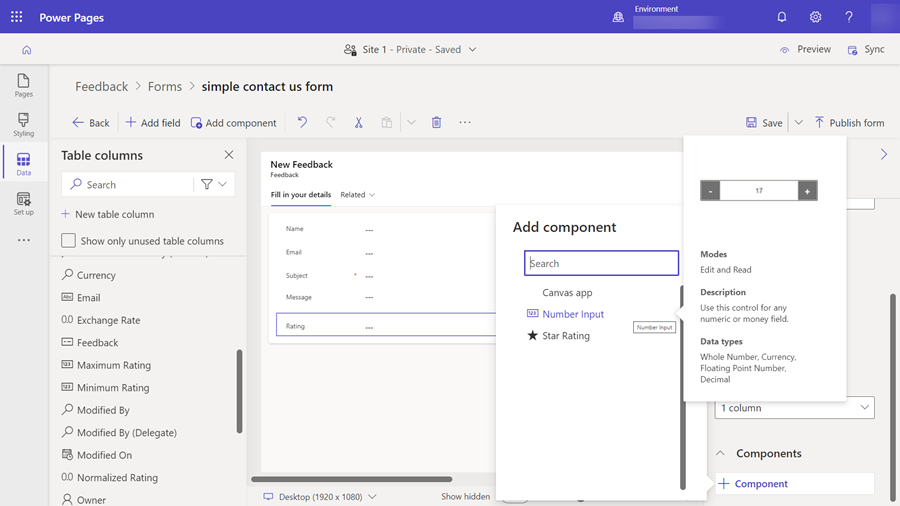
3. Select **Save** and **Publish form**
## Configure Power Pages Site for Code Component
After the code component is added to a field in a model-driven app, you can configure Power Pages to use the code component on a form.
There are two methods to enable the code component:
### Enable Code Component in Design Studio
To enable a code component on a form using the design studio:
1. After you [add the form to a page](https://learn.microsoft.com/en-us/power-pages/getting-started/add-form), select the field where you added the code component and select **Edit field**
2. Select the **Enable custom component** field
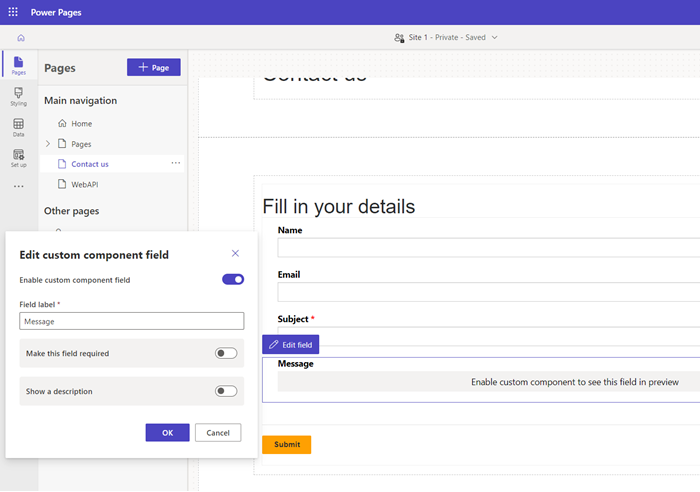
3. When you preview the site, you should see the custom component enabled
### Enable Code Component in Portals Management App
To add a code component to a basic form by using the Portals Management app:
1. Open the [Portals Management](https://learn.microsoft.com/en-us/power-pages/configure/portal-management-app) app
2. On the left pane, select **Basic Forms**
3. Select the form to which you want to add the code component
4. Select **Related**
5. Select **Basic Form Metadata**
6. Select **New Basic Form Metadata**
7. Select **Type** as **Attribute**
8. Select **Attribute Logical Name**
9. Enter **Label**
10. For **Control Style**, select **Code Component**
11. Save and close the form
## Code Components Using the Portal Web API
A code component can be built and added to a webpage that can use the [portal Web API](https://learn.microsoft.com/en-us/power-pages/configure/web-api-overview) to perform create, retrieve, update, and delete actions. This feature allows greater customization options when developing portal solutions. For more information, see [Implement a sample portal Web API component](https://learn.microsoft.com/en-us/power-pages/configure/implement-webapi-component).
## Next Steps
[Tutorial: Use code components in portals](https://learn.microsoft.com/en-us/power-pages/configure/component-framework-tutorial)
## See Also
- [Power Apps component framework overview](https://learn.microsoft.com/en-us/power-apps/developer/component-framework/overview)
- [Create your first component](https://learn.microsoft.com/en-us/power-apps/developer/component-framework/implementing-controls-using-typescript)
- [Add code components to a column or table in model-driven apps](https://learn.microsoft.com/en-us/power-apps/developer/component-framework/add-custom-controls-to-a-field-or-entity)
Is this your skill, or is something wrong with this listing? Request removal or report an issue. Author removals are honored within 72 hours.
No comments yet. Be the first to comment!
 Skills Directory